How to organize your phone and computer so your digital life stays tidy and easy to navigate. Follow these simple steps to clean things up!
This is Day 15 of the 30 Days to Less of a Hot Mess Challenge. We’re decluttering, reorganizing, and taking a breath to create a home we love. If you’re new to the challenge, consider starting at the beginning. (Note: links and affiliate references have been removed for clarity.)
What about decluttering your phone and computer? I spend a lot of time on both my laptop and my iPhone—these devices represent my work and my connection to the world. Keeping them organized and clutter-free makes me more productive and less stressed.
If I can organize my home and declutter an entire office and craft closet, I can do the same with my digital life. Removing unused files and apps speeds up systems and can extend battery life.
How to Organize Your Computer
The Desktop: keep it clean.
I don’t want a chaotic screen full of overlapping icons when I start work. That visual clutter is distracting and reduces productivity. Just as I wipe down the kitchen counters each evening, I try to clear my desktop before I log off. Since upgrading to a new MacBook Pro, I’ve been much better about this—and the difference is noticeable.
1. Delete unused files and organize what remains
This can take time, so be patient. Work through your files methodically and return to the task if you get interrupted until it’s complete.
2. Choose a simple, inspiring desktop background
A calm or minimal wallpaper helps keep your screen from feeling cluttered. I like family photos, solid colors, or subtle patterns that won’t compete with desktop icons. Pick something that motivates you to stay organized.

Meg Morrow Designs

The Lovely Drawer

Design Love Fest — many desktop wallpaper options
3. Regularly clean your Downloads folder
Downloads can become a dumping ground. Check this folder often, remove what you don’t need, and empty the trash frequently to keep things manageable.
4. Back up your computer
Store important files in a cloud service and back up to a local hard drive on a regular schedule. I use cloud storage for daily access and copy those files to an external drive once a month for extra security.
How to Declutter and Organize Your Phone
The same principles apply to your phone, though phones need a few extra steps because of apps, photos, and message threads that can quickly accumulate.
1. Back up
Before you delete anything, back up your phone. Save your data to your computer or a cloud service, then back up that copy to an external drive. This protects photos, videos, and important files in case you remove something by mistake.
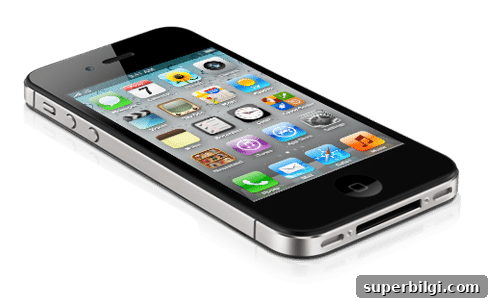
2. Group similar apps
Organize apps into folders so you can see what you have and find things easily. On most phones you can press and hold an app to move it into a folder. Grouping reduces home-screen clutter and speeds navigation.
Common folder categories
- Messages: Messages, GroupMe, WhatsApp, Google Voice, FaceTime
- Photos: Photos, Camera, editing apps
- Media: Video apps, music, podcasts
- Web Browsers: Safari, Chrome
- Shopping: Retail and marketplace apps
- Social Media: Facebook, Instagram, Twitter, Pinterest, etc.
- Email: Gmail, Outlook, other mail clients
- To Do: Notes, Reminders, Calendar, task apps
- Reading: Kindle, news and reading apps
- Finance: Banking and budgeting apps
- Travel: Ride-share, booking, and maps
- Delivery: Grocery and meal delivery apps
- Food: Restaurant and ordering apps
That’s a lot of categories, but you don’t need many apps in every folder—just the ones you actually use.
3. Delete unused apps
Be ruthless. Open each folder and remove apps you no longer use or that duplicate functionality from another app. If you later need an app you deleted, you can usually re-download it without repurchasing.
4. Clean up within apps
After deleting unused apps, go into the remaining apps and tidy them up—especially Messages, Photos, social apps, and email. Some clean-up tasks take time, so set aside a block in your calendar if necessary.
- Messages – delete old conversations you no longer need.
- Photos – remove duplicates and images that don’t bring you joy; keep only the best shots.
- Notes – clear out outdated notes.
- Contacts – remove people you no longer know or communicate with.
- Social Media – consider unfollowing accounts that don’t serve you. You don’t need to unfriend people to stop seeing their posts—unfollow to simplify your feed.
- Videos – video files are large; back them up and delete from your phone regularly.
- Podcasts – unsubscribe and delete shows you no longer listen to.
- Music – prune songs you don’t listen to and organize playlists.
- Email – tackle inbox cleanup from a desktop: delete, archive, and unsubscribe to lower daily email volume.
5. Maintain
Set recurring reminders to review apps, messages, photos, music, and email. Regular maintenance prevents digital clutter from building up again.
6. Make it pretty
Finishing touches like a clean wallpaper or organized app layout make your devices feel more pleasant and encourage you to keep them tidy. There are many free wallpaper designers and collections you can explore if you want fresh background options.
If you’ve followed these steps, congratulations—you’ve significantly decluttered your devices. If the job feels big, schedule shorter sessions until it’s done. Start your digital declutter today and set appointments with yourself to finish what you can’t complete in one sitting.
The Messy Work: Begin your computer and phone decluttering session now. Tackle what you can, and plan time to finish the rest.
In the mess with you, Laura

More posts you will love:
- How to Organize a Linen Closet
- Organizing Kids’ Art and Memorabilia
- My Favorite Organizing Products
- How to Declutter Your Home in 5 Simple Steps
- How to Organize a Pantry