How to organize your phone and computer so your digital life stays in order and is easy to find! Follow these easy steps to clean it up!
This is Day 15 of the 30 Days to Less of a Hot Mess Challenge! We're decluttering, reorganizing and getting some fresh air to make a home we love. If this is your first time joining, you may want to start here at the beginning. Affiliate links are used for your convenience.
What about decluttering those phones and computers? I spend a heck of a lot of time on both my laptop and my iPhone. They represent my business and my connection to the outside world. So for me, it's hugely important to keep things organized and clutter-free!
I figured if I can organize my home and declutter my entire office and craft/decor closet, then I can declutter my phone and computer! Getting rid of unused files and apps will speed up your systems and improve your phone's battery life.
Ready to find peace in your home again?
You can't decorate a home with clutter. Get started on your decluttering journey with 30 days of encouraging and helpful emails to keep you motivated!
How to Organize Your Computer
The Desktop: The big thing for me is keeping my desktop clear!
I don't want to be bombarded by a billion overlapping icons when I log on to work. It's distracting and leads to less productivity. Physical (or in this case, digital) clutter leads to mental clutter.
Just as I try to declutter and wipe down the kitchen counters each night, I also try to clear off my desktop every evening before I log off. Several months ago I upgraded to a new MacBook Pro, and when I did, I swore I would no longer treat my desktop like a messy inbox. And so far, so good!
1. Delete any unused files and organize the rest!
This task may take a while, as it did for me, but come back to it if you get interrupted until it's done!
2. Choose a pretty desktop background that is simple and inspiring.
I currently have a gorgeous picture of my daughters, which I love. But in the past I've used solid color or lightly patterned backgrounds. I found some really cute free wallpapers:

Meg Morrow Designs

The Lovely Drawer

Design Love Fest – they have every imaginable desktop wallpaper here
Choose something that inspires you to do your best and keeps that baby decluttered!
I forget to check this folder, but I download so many things that it's crazy, and if it's left alone for long, my folder becomes a beast. I toss things in the "trash" regularly and empty it often!
4. And make sure you're always backing up your computer.
I use Google Drive for almost all my important files, and I back that up to a local hard drive once a month.
How to Declutter and Organize Your Phone
It's the same idea as organizing your computer, but I've got a few more in-depth ideas for decluttering your phone.
1. Back up!
First, back up your phone. That way, if you accidentally delete an important file, photo or video, you still have a copy. Back up to your computer, then back up the computer to an external hard drive or the cloud. I personally back up to Google Drive and then copy that to an external hard drive.
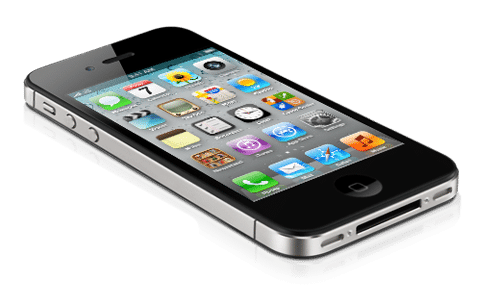
2. Group Similar Apps!
Just as we pull everything out of a room and group similar things so we can see what we have, group similar apps on your phone. On an iPhone, touch and hold an app until it starts wiggling, then delete it or drag it into a folder. Click here to learn how to create folders on Android.
Here are some commonly used folder categories:
- Messages: Messages, GroupMe, WhatsApp, Google Voice, FaceTime
- Photos: Photos, Camera, Phonto, Photoshop Express, SnapSeed, PicTapGo, Picasa, Flickr
- Media: Videos, YouTube, Netflix, Amazon Prime Video, iTunes Store, Music, Pandora, Spotify, Podcasts, Audible
- Web Browsers: Safari, Chrome
- Shopping: Amazon, Target, Cartwheel, Walmart, App Store, Etsy, Google Express
- Social Media: Facebook, Instagram, Twitter, Pinterest, Timehop, Snapchat, Hootsuite
- Email: Gmail, Google, Outlook
- To Do: Notes, Reminders, Calendar, HomeRoutines (love this app!), Evernote, Trello
- Reading: Kindle, Bloglovin', iBooks, Bible, Newsstand
- Finance: Stocks, Bank, PayPal, EveryDollar (my budgeting app)
- Travel: Uber, Kayak, Expedia, Tripadvisor, Airbnb, HomeAway
- Delivery: Shipt, BlueApron, Walmart Grocery
- Food: Chick-fil-A, Five Guys, Moe's, Papa John's
Whew! That's a lot, but I honestly have every one of those category folders on my phone, though not necessarily that many apps in each one.
3. Delete!
Go through each folder and delete any apps you don't use. Be ruthless! Log into an app to refresh your memory and see if you even remember what it does. Delete any apps that overlap. I had an old photography app that turned an image into a square. That was before Instagram cropped photos for you, and before I had another editing app that did the same thing! Bye bye, square-cropping app!
Remember, you can always download an app again if you realize later that you need it. (You won't be charged twice for an app you already purchased.)
4. Clean up!
Now that you've deleted unused apps, open each app and clean it up, especially your Messages, Photos, Social Media and Email apps. Some of these take time, so schedule a slot in your planner to tackle them if you need to!
- Messages – delete any old messages. I went back and deleted most of the ones more than 2 months old. I seriously had some group texts from the dinosaur era.
- Photos – delete any photos that don't bring you joy. I found that I have many photos that are duplicates or very similar to others. Choose the best ones and delete the rest!
- Notes – delete old notes you no longer need
- Contacts – remove old contacts for people you don't know or no longer communicate with.
- Social Media – this one will take a while and should be done on your desktop! I purged my social media accounts last fall and it has been so liberating, especially the unfollow button on Facebook. You don’t have to unfriend someone, just unfollow them!
- Twitter – turn off all web and email notifications; unfollow people as needed
- Facebook – unsubscribe from unnecessary (or unwanted) posts by hovering over someone's name and clicking "unfollow" – seriously so nice! In the fall I found myself feeling anxious over some Facebook posts and discussions (hello, election). So I chose to unfollow anyone I didn't talk to in real life and anyone who had a negative feed. It has been wonderfully freeing! I spend less time on Facebook because I follow a fraction of my friends. I see what I want to see, and I move on to other things once I've seen the important stuff. Don't let FOMO (fear of missing out) clutter up your newsfeed!
- Instagram – unfollow anyone you can't remember following in the first place!
- Videos – video files are huge, so back them up on your computer and delete them from your phone regularly.
- Podcasts – unsubscribe from and delete any podcasts you no longer listen to
- Music – delete any music you no longer listen to or enjoy. Organize the rest into playlists.
- Email – this one is a doozy, and I recommend tackling it from your desktop. Put an appointment on your calendar and delete, delete, delete! Then unsubscribe, unsubscribe, unsubscribe! I've done this recently with so many emails, and now my daily influx is so much more manageable.
5. Maintain!
Just remember to keep removing apps you don't use, and go through messages, photos, music and email regularly. You might even set up a recurring appointment on your calendar to review each item.
6. Make it pretty!
I love these free iPhone wallpapers from Lily & Val. Enjoy!
OK, if you've made it this far, congratulations! I had no intention of writing all of that when I started, but it's good stuff. And if you go through each step, your computer and phone will be wonderfully organized and clutter-free.
The Messy Work: Start your computer and phone decluttering-palooza today! Make appointments with yourself to finish whatever you can't get done today!
In the mess with you, Laura
More Posts You Will Love: