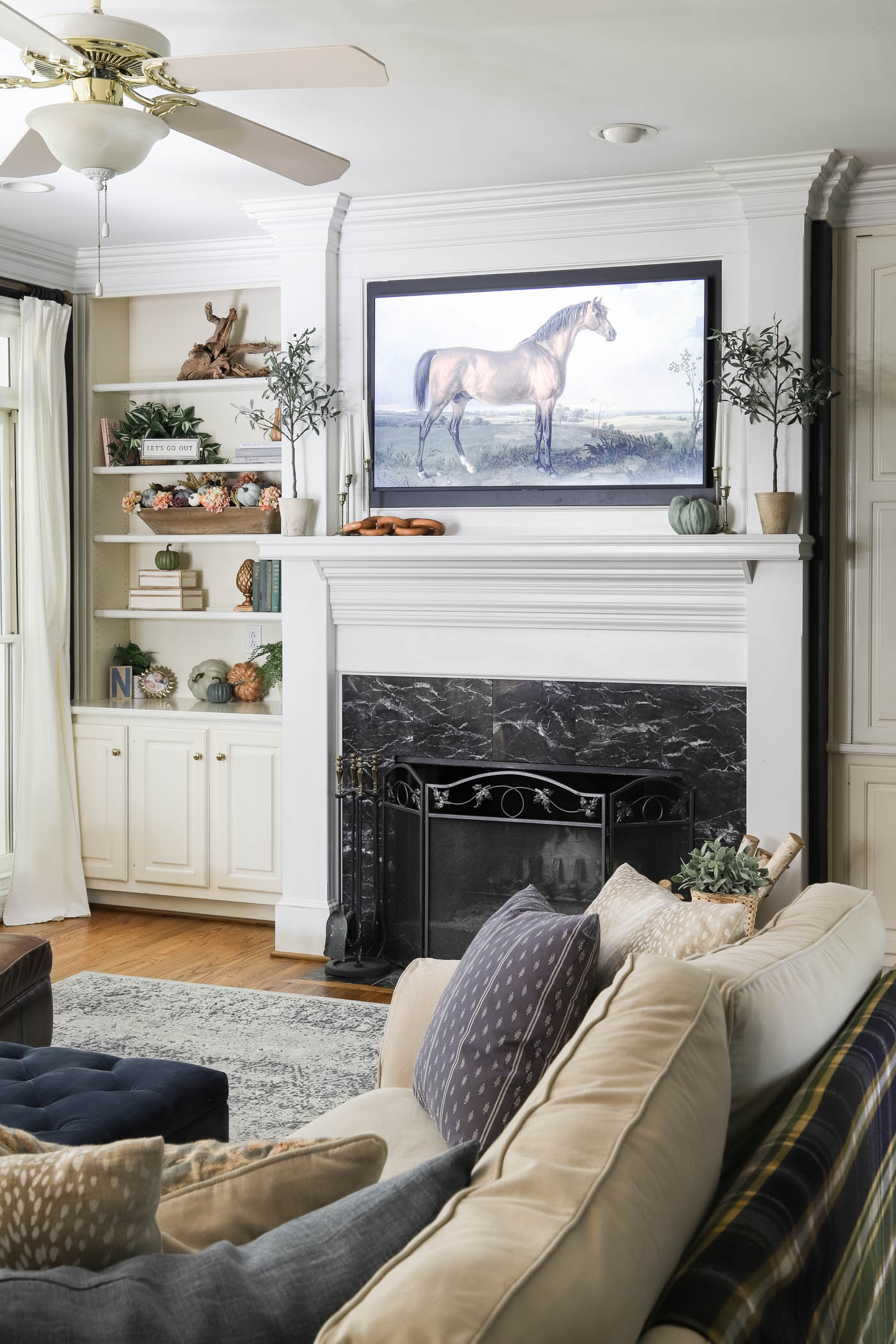
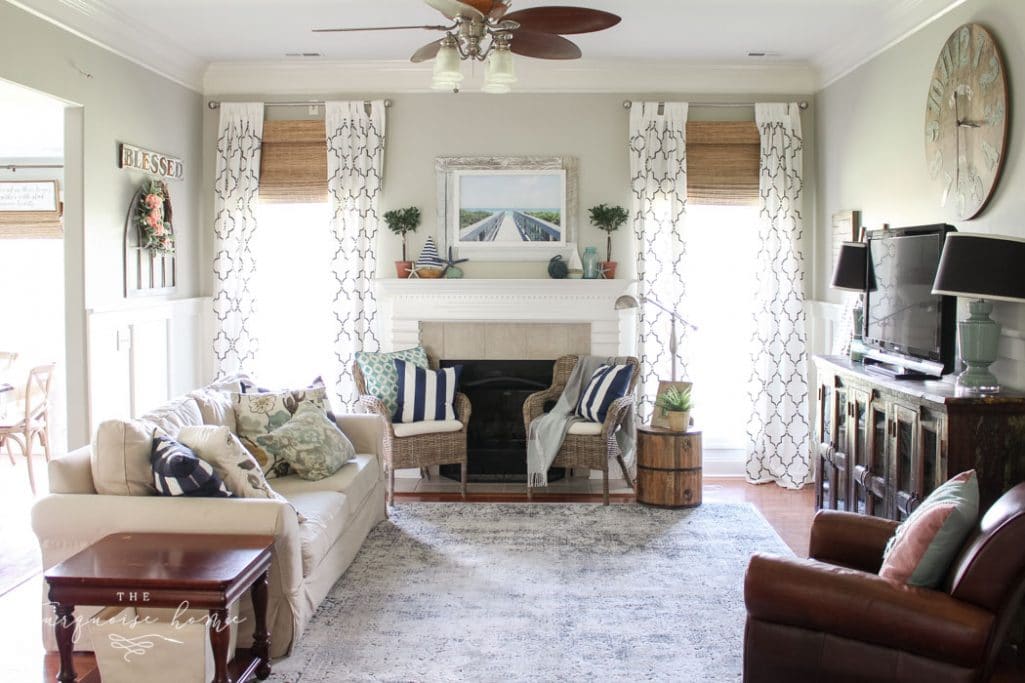
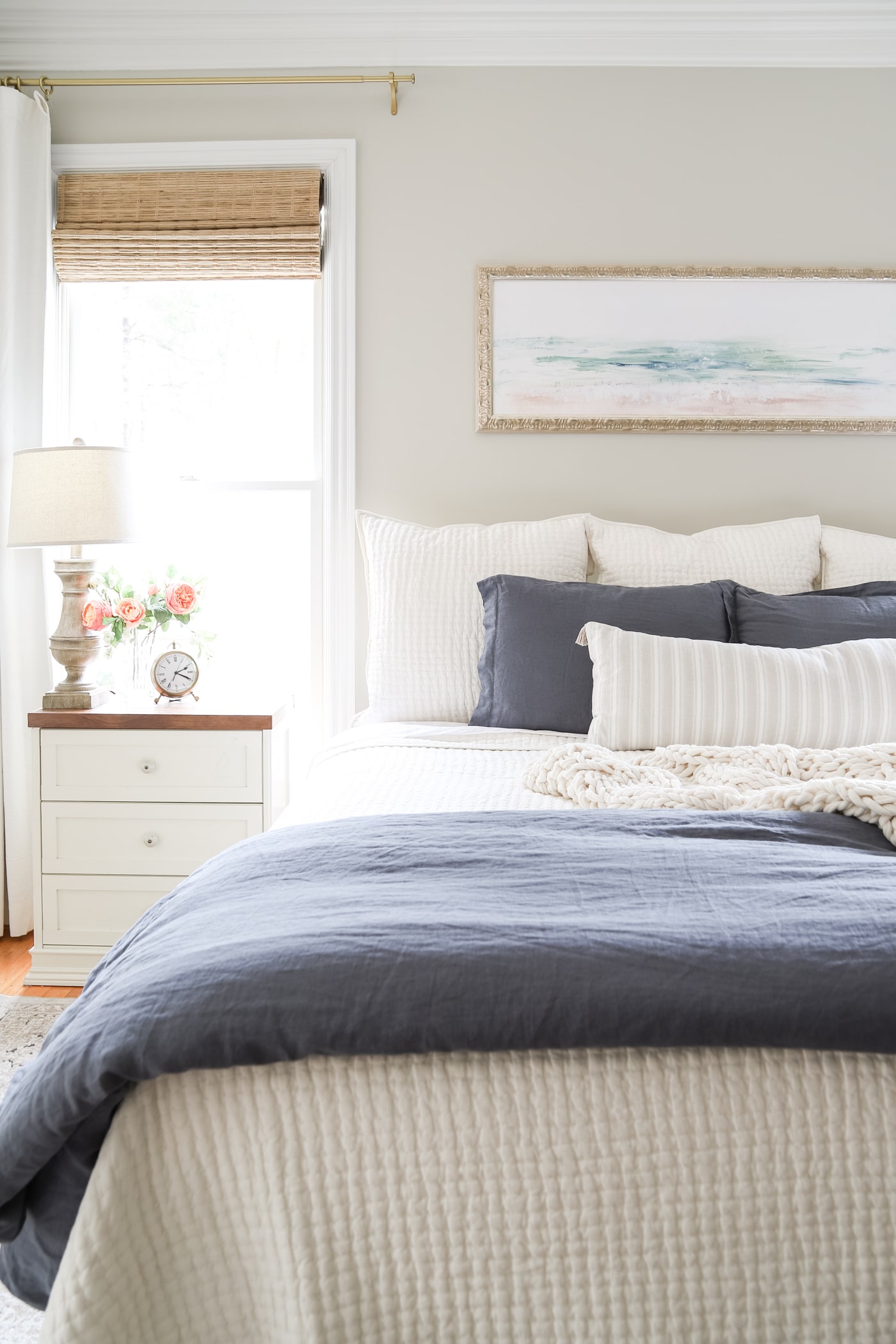
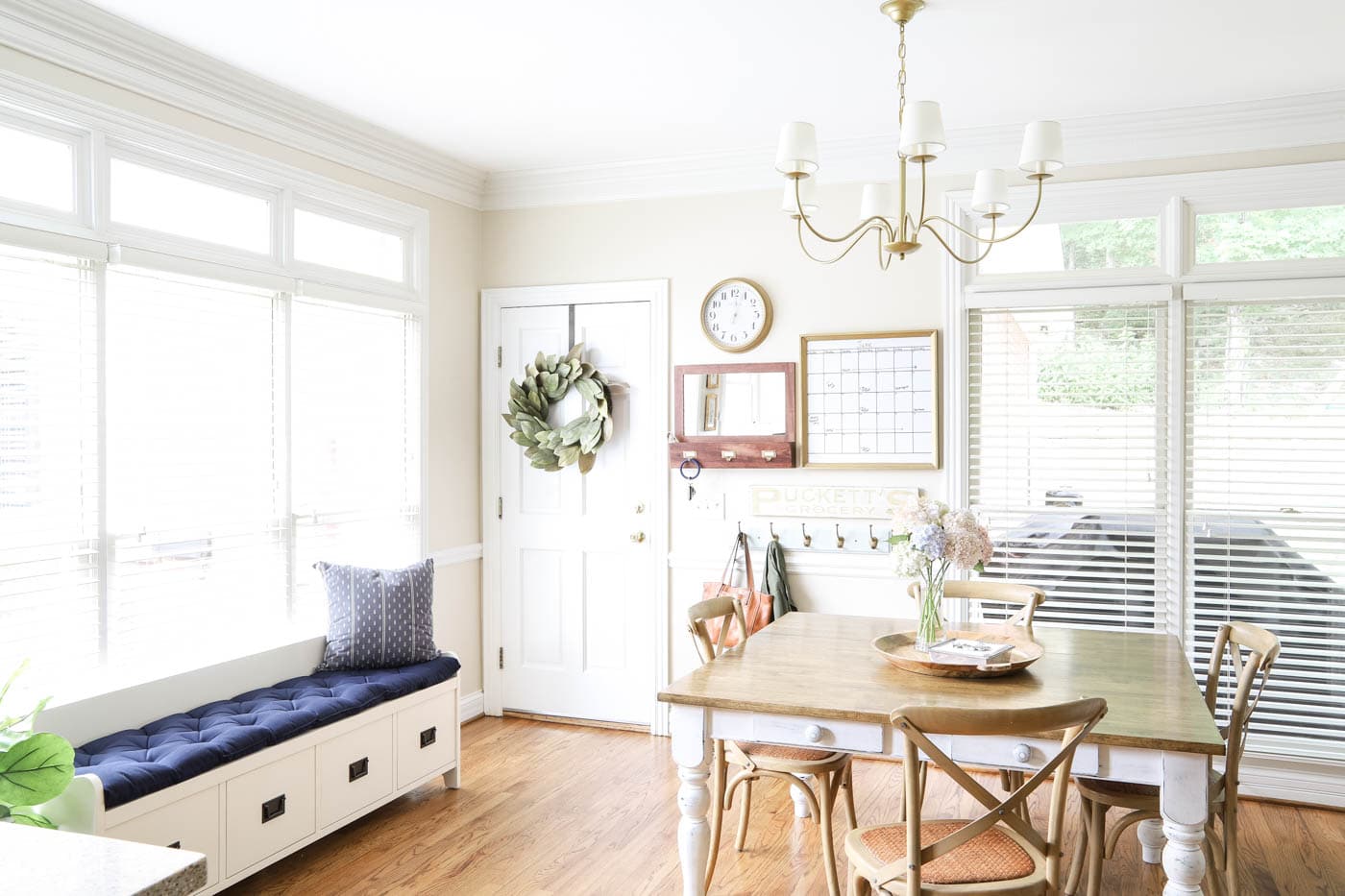
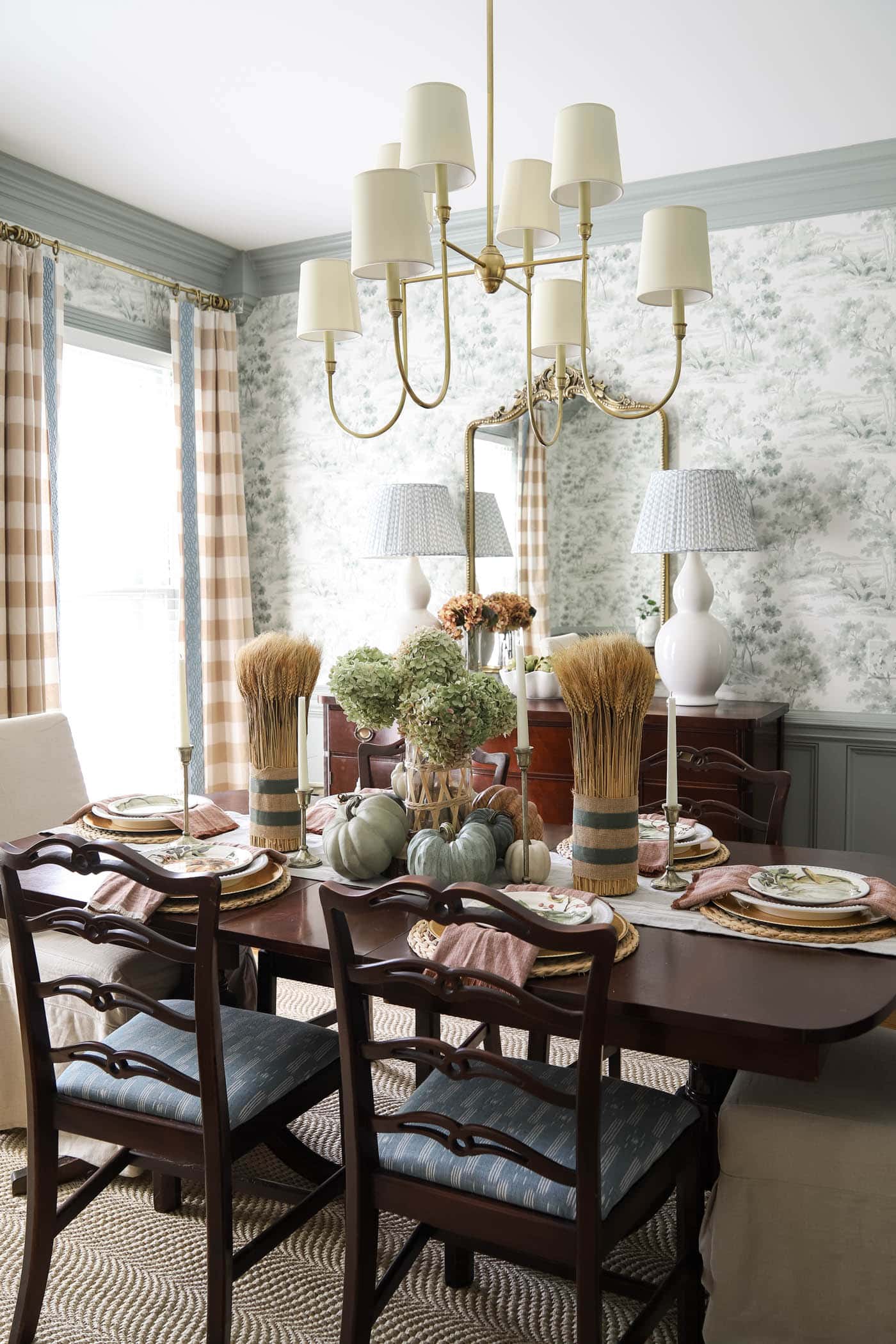
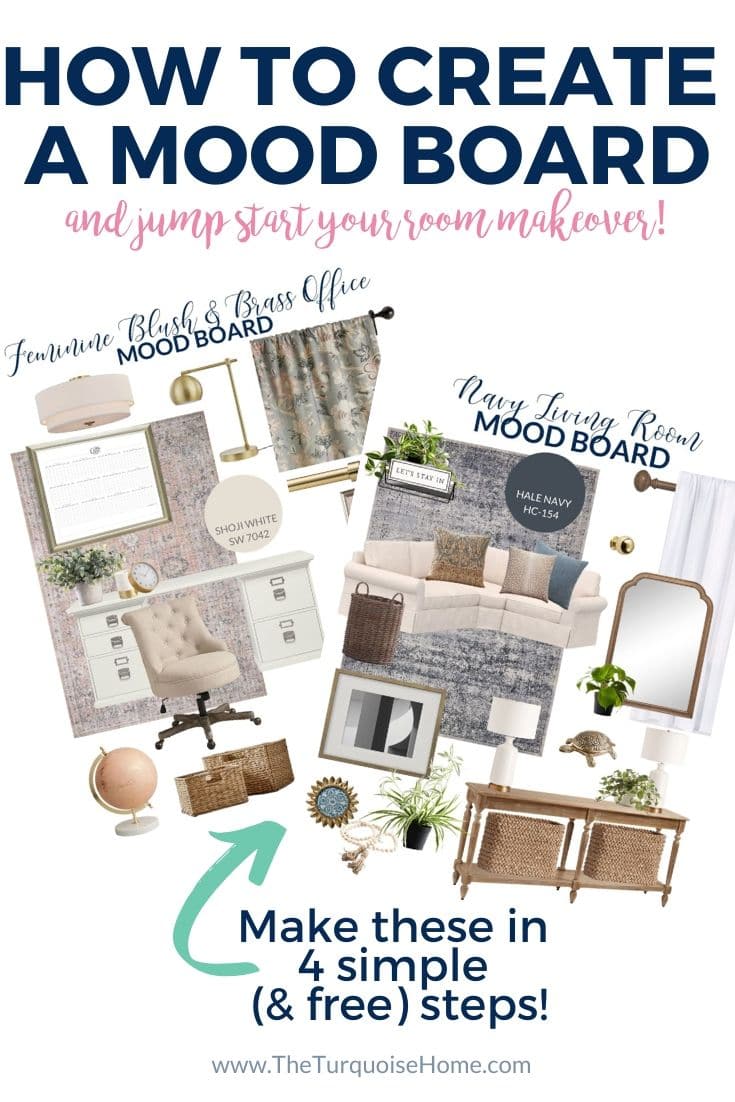
Create your own design mood board at the start of any room makeover. It’s easy to do and lets you picture the room coming together before you buy a single item or paint a single wall. It’s honestly the best way to plan a room!
After I posted my office makeover vision board a while back, so many of you asked how I put it together. I’m thrilled to walk you through the process today!
This post includes affiliate links for your convenience. Read my full disclosure policy here.
Before you begin a mood board or design board, you might want to check out my How to Start a Room Makeover post. It covers the groundwork you should do before a mood board even comes into play!
I have been putting together design boards like these for as long as I’ve been blogging, and there are plenty of ways to do it. The method has evolved along with the software and tools available, and they keep improving! Creating an attractive vision board takes far less time now than it did only a few years ago.
I rely on Canva Pro to build my digital mood boards quickly. I pay for the upgrade because it’s part of my work, and it’s worth the cost to me. Today, though, I’m showing you how to make one without paying for any software, so you can create yours at no cost!
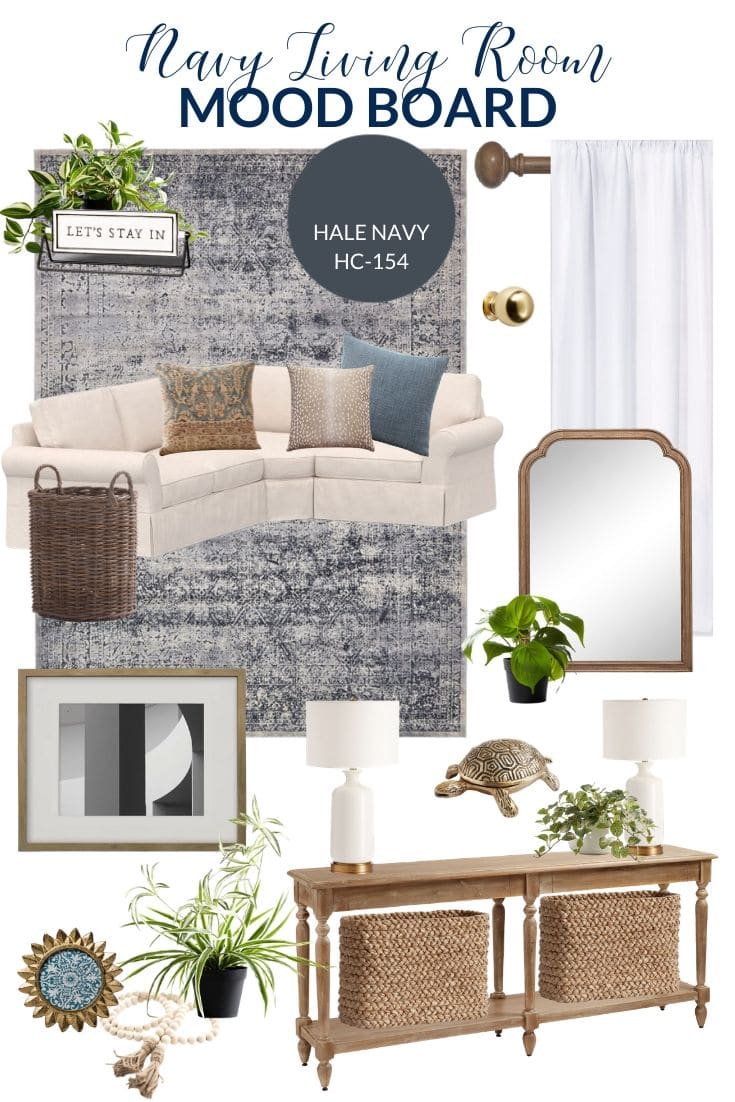
Faux Wandering Variegated Tradescantia Plant | Let’s Stay In Sign (close match) | Wood Curtain Rod | White Curtains | Vintage-Style Navy Rug | Sectional Sofa (in Parchment Twill Fabric) | Palna Pillow Cover | Midnight Blue Linen Pillow Cover | Animal Print Pillow Cover | Large Wicker Basket (close match) | Wood Framed Mirror | Faux Pothos Plant | Gallery Frame | White & Brass Lamps | Brass Turtle | Faux Potted Fittonia Plant | Starburst Frame | Wooden Beads with Tassel | Faux Potted Variegated Spider Plant | Console Table | Console Table Baskets
A mood board exists for one reason: it shows me how everything will flow together in a room. Even when a room already feels settled in my head, I still build a vision board to confirm that all the pieces work as a set.
If something looks off on my inspiration board, I can swap pieces in seconds without buying anything or sending returns. Over time, that saves a huge amount of effort!
How to Put Together a Design Board
If you prefer watching to reading, I’ve recorded all of these steps in a video at the end of this post!
1. Gather and Save the Design Elements you want to include on your board.
Visit online shops that sell the pieces you already have in the room, along with the ones you hope to buy, and save their images to your computer. When you can, pick photos with a plain white background or as little clutter behind the item as possible.
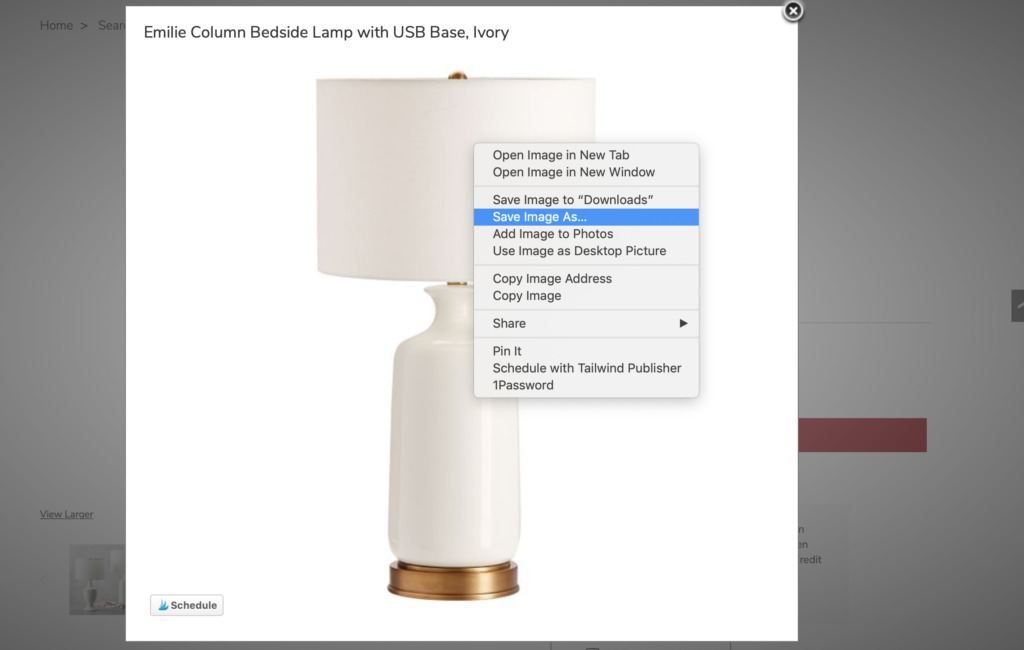
You may already know this, but on a laptop or desktop, right-click with the mouse (or tap twice on the trackpad) and choose “save file as” to store the picture on your computer. Some sites make you enlarge the image before it can be saved.
If a site won’t let you save the image, take a screenshot and crop it down to the item. On a Mac, press command-shift-4 to capture part of the screen. The screenshot will land on your desktop.
2. Take Out Image Backgrounds & Save as PNG Files
You don’t have to strip the backgrounds from your images, but doing so gives the board a tidier look and makes the pieces easier to arrange. I use Canva Pro or Clipping Magic, though free tools work too.
Background Burner was a solid free choice. You created a free account, uploaded your picture, and it tried to erase the background, offering a few versions to pick from. Updated 2023: Background Burner no longer appears to be available, so search for “free background remover” to find a replacement!
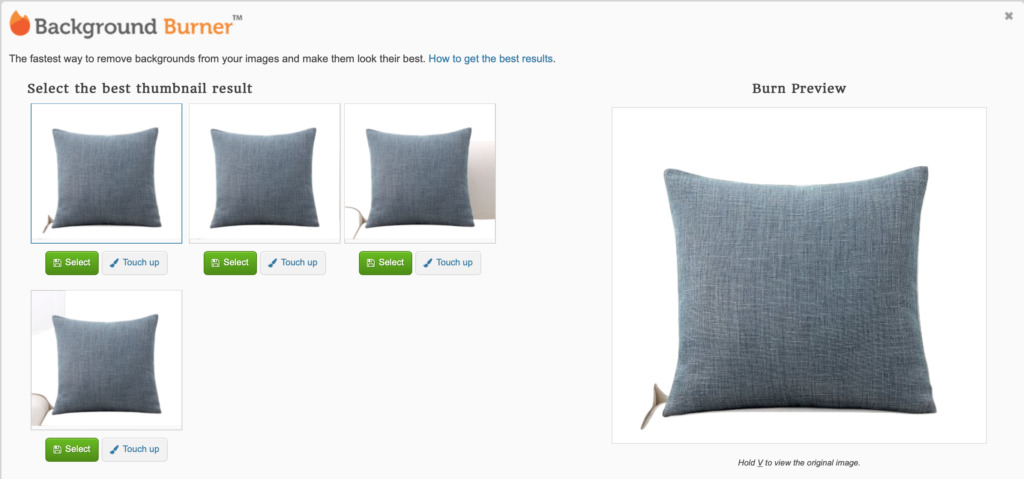
In the example above, option #2 is the winner because it cut the background away from the pillow cleanly. If the first try leaves some background behind, choose “touch up” under the best option. A yellow outline will appear around the image. If that looks right, download it. If not, use the green and red buttons to erase or restore any areas you want to adjust.
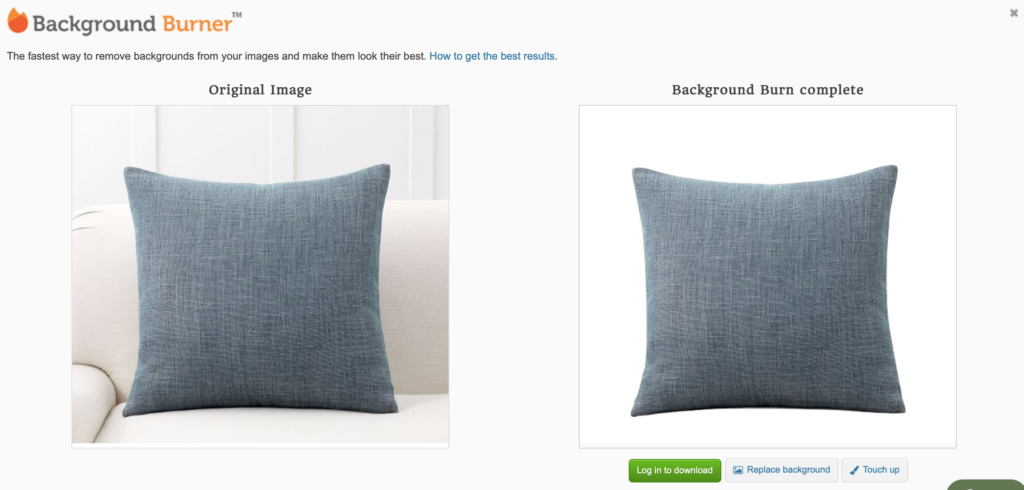
Save the picture as a PNG with a transparent background, then do the same for every piece you plan to use.
If you already subscribe to Canva Pro, try its newer “background remover” tool. Upload an image to Canva, place it in your design, click “effects,” then choose “background remover” in the top left corner. It removes the background automatically. If the result isn’t quite right, Clipping Magic (small fee) or a free remover can help.
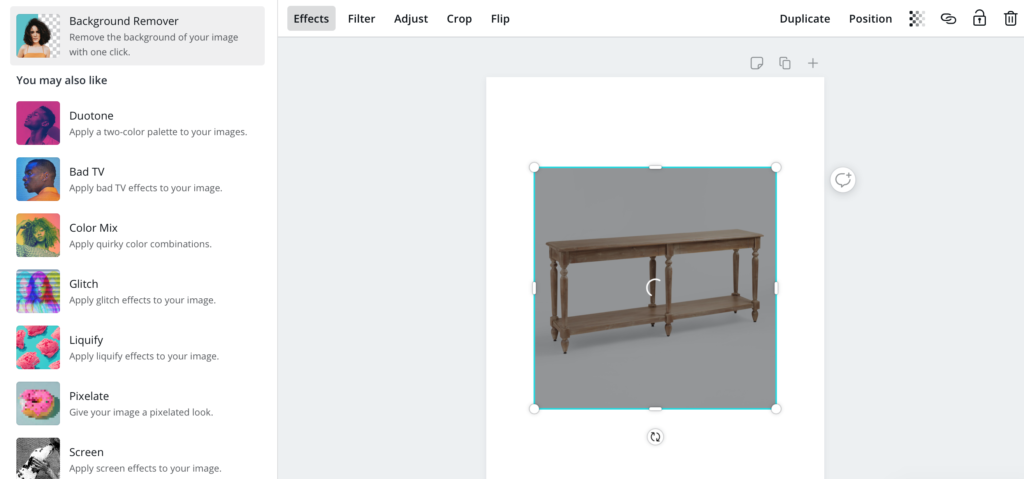
Once the background is gone, you can layer each piece in front of others and still see what’s behind it. Pretty neat, right?
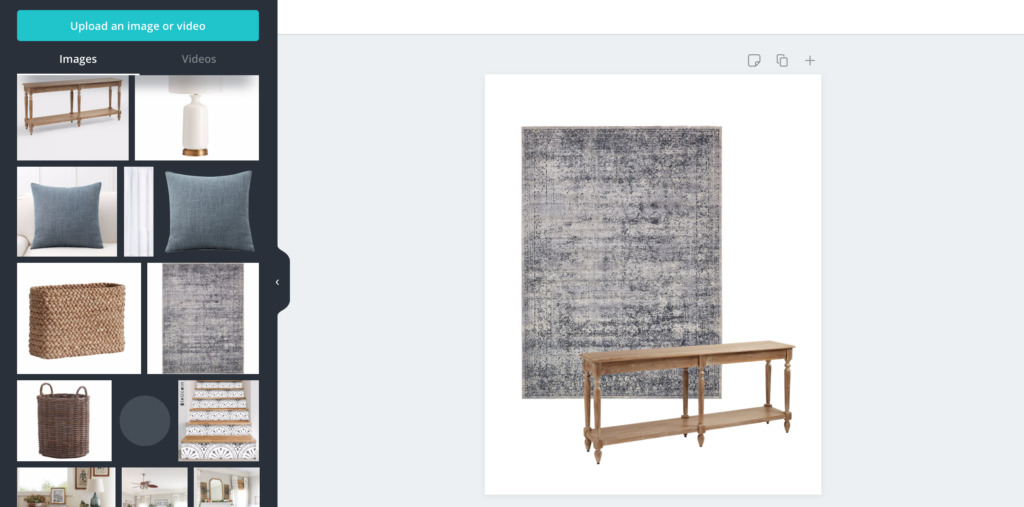
Try out these different background-removal methods and settle on the one that suits you best for mood boards.
3. Start a New Canva Design & Upload Every Image
Open Canva, select “Create a Design,” then choose “+ custom dimensions.” I usually go with 735 x 1102, but any size you like will work!
Select “uploads” and add all of your pictures to Canva.
4. Shuffle the Pieces on the Board in Canva Until They Look Right
With your new board open, click or drag the images onto the blank canvas. To layer one piece in front of or behind another, open the “position” tab in the upper right and move it forward or backward.
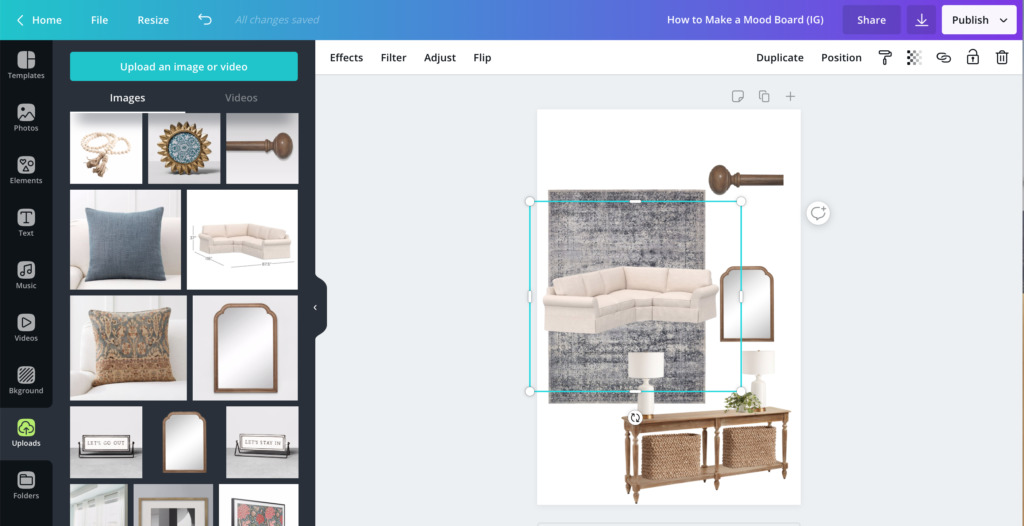
You can also copy an item with the “duplicate” button at the top. I did this with the baskets and lamps on my board so they would match the size of the others.
Arrange everything on your digital board however you like. I begin with the biggest pieces and work my way down to the smallest ones.
That’s it! I make one for every room makeover because skipping it leads to mistakes and extra returns. It’s also a handy way to test different lighting or furniture styles until you find your favorite.
Video: Making a Mood Board Step by Step
Watch the video below to follow along as I take you through every step!
Now you can show your design ideas to friends and family and ask what they think (if you’re brave enough to invite their opinions).
Drop any questions in the comments below and I’ll be happy to answer!
More Posts You Might Enjoy: