
How to organize your phone and computer so your digital life stays tidy and easy to navigate. Follow these simple steps to get everything cleaned up.
This guide is part of a larger decluttering effort to help create a home and digital space you enjoy. If you’re just getting started, take this as a friendly nudge to focus on your devices today. Cleaning up unused files and apps not only reduces stress but can also speed up your computer and improve your phone’s battery life.
I spend a lot of time on both my laptop and my phone—these devices support my work and connect me to friends and family—so keeping them organized is essential. If I could clear out my whole office and craft closet, I could definitely get my digital life under control.
How to Organize Your Computer
Keep the desktop clear. A cluttered desktop can be visually overwhelming and distracting. Just as you wipe down kitchen counters each night, try to clear your digital desktop before you log off. I promised myself I would stop treating my desktop like an inbox when I upgraded my laptop, and that habit has made a big difference in my focus.
1. Delete unused files and organize what’s left
This can take time the first time you do it. Work steadily and come back if you get interrupted—finish the job so the clutter doesn’t come back.
2. Choose a simple, inspiring desktop background
Pick a photo or wallpaper that calms and motivates you. A personal family photo, a solid color, or a subtle pattern works well because it won’t compete with your icons. A background you love makes it easier to resist piling items on the desktop.

Choose something that inspires you to do your best and to keep your desktop tidy.
3. Regularly clear your Downloads folder
Downloads can become a digital junk drawer. Delete installers, duplicates, and files you no longer need. Empty the trash periodically so those files are truly removed.
4. Always back up your computer
Keep copies of your important documents in the cloud and on a local external drive. A routine backup schedule—weekly or monthly—will protect your files if something goes wrong.
How to Declutter and Organize Your Phone
The same principles apply to your phone, but you’ll want a few extra steps to manage apps, photos, and messages.
1. Back up your phone first
Before you start deleting, make a full backup. That way, if you remove something important by mistake, you can restore it. Back up to your computer and to cloud storage, and consider keeping a copy on an external drive for extra security.
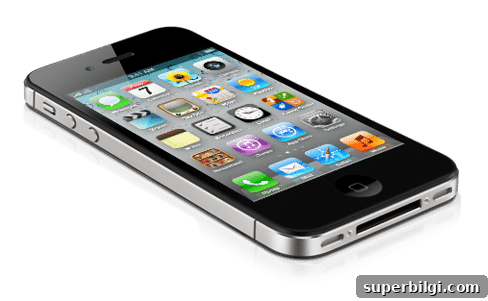
2. Group similar apps into folders
Create folders for related apps so your home screens stay tidy and easy to scan. On iPhone hold an app until it wiggles, then drag it onto another to create a folder. On Android, use your device’s folder creation method.
Common folder categories
- Messages: Messages, Group chats, WhatsApp, Google Voice, FaceTime
- Photos: Camera, Editing, Photo storage tools
- Media: Video streaming, Music, Podcasts, Audiobooks
- Web: Browsers like Safari or Chrome
- Shopping: Retail and grocery apps
- Social: Facebook, Instagram, Twitter, Pinterest, and scheduling tools
- Email: Gmail, Outlook
- To Do: Notes, Reminders, Calendar, task apps like Trello or Evernote
- Reading: eBook and news readers
- Finance: Banking, payment apps, budgeting tools
- Travel: Ride-share, flight and hotel apps
- Delivery: Grocery and meal delivery services
- Food: Restaurant apps you use often
Use categories that make sense to you—fewer folders with clear labels will speed up finding what you need.
3. Delete apps you don’t use
Be ruthless: delete duplicates and apps you haven’t used in months. You can always reinstall later—and you usually won’t be charged again for an app you purchased previously.
4. Clean up the content inside apps
After removing unused apps, tidy up what’s left. Focus on Messages, Photos, Social Media, and Email. These areas often hold the most clutter.
- Messages – delete threads you don’t need, especially large group chats and old conversations.
- Photos – remove duplicates and images that don’t spark joy. Keep the best and archive or delete the rest.
- Notes – clear out old or irrelevant notes.
- Contacts – remove outdated or unknown entries.
- Social Media – unfollow accounts that don’t add value to your feed. You can do most of this more efficiently on a desktop if you prefer.
- Videos – back up large video files to your computer or cloud storage and delete them from your phone.
- Podcasts – unsubscribe from shows you don’t listen to and remove downloaded episodes.
- Music – remove tracks you no longer enjoy and organize the rest into playlists.
- Email – schedule a block of time on your calendar to unsubscribe from newsletters you don’t read and to delete or archive old messages.
5. Maintain the system
Set a regular reminder—monthly or quarterly—to remove unused apps, clear out messages, and manage photos and email. Consistency keeps clutter from building back up.
6. Make it pleasant to use
Customize your phone with wallpapers and icons that make you happy but don’t overwhelm. A visually appealing setup makes it easier to keep everything tidy.
If you follow these steps—back up, sort, delete, and maintain—your computer and phone will stay organized and less stressful to use. Start with one area and schedule follow-up sessions to finish what you can’t complete in one sitting. Small, consistent efforts lead to a calmer digital life.
The messy work: Begin your computer-and-phone decluttering session today. Block time on your calendar and follow through.
In the mess with you, Laura

More posts you may enjoy:
- How to Organize a Linen Closet
- Organizing Kids’ Art and Memorabilia
- My Favorite Organizing Products
- How to Declutter Your Home in 5 Simple Steps
- How to Organize a Pantry